
Count signed money, not calls
A source that sends twenty calls and no jobs is worse than one that sends three calls and two jobs. So for every source, look at three things over the same weeks:
- How many leads came.
- How many turned into a signed estimate.
- How much money was signed.
Give every source its own door
You cannot count what you cannot tell apart. Put a separate phone number on the yard sign, another on the truck, a separate link or QR code on the flyer. When someone calls that number, you know where they saw it.
For everyone else, ask one question at the first call: "How did you find us?" and write the answer down the same day.
Look at the list once a month
Cut the source that brings only calls. Put more into the one that brings signed money. Also check who called and did not get an answer: those are leads you paid for and lost.
How it works in WorkTime CRM
Every client has a lead source. In Settings → Lead Sources you set up where leads come from. For a separate number per source, add Tracking Numbers. For a flyer, a sign or an ad, make a short link and a QR code in Tracking Links.
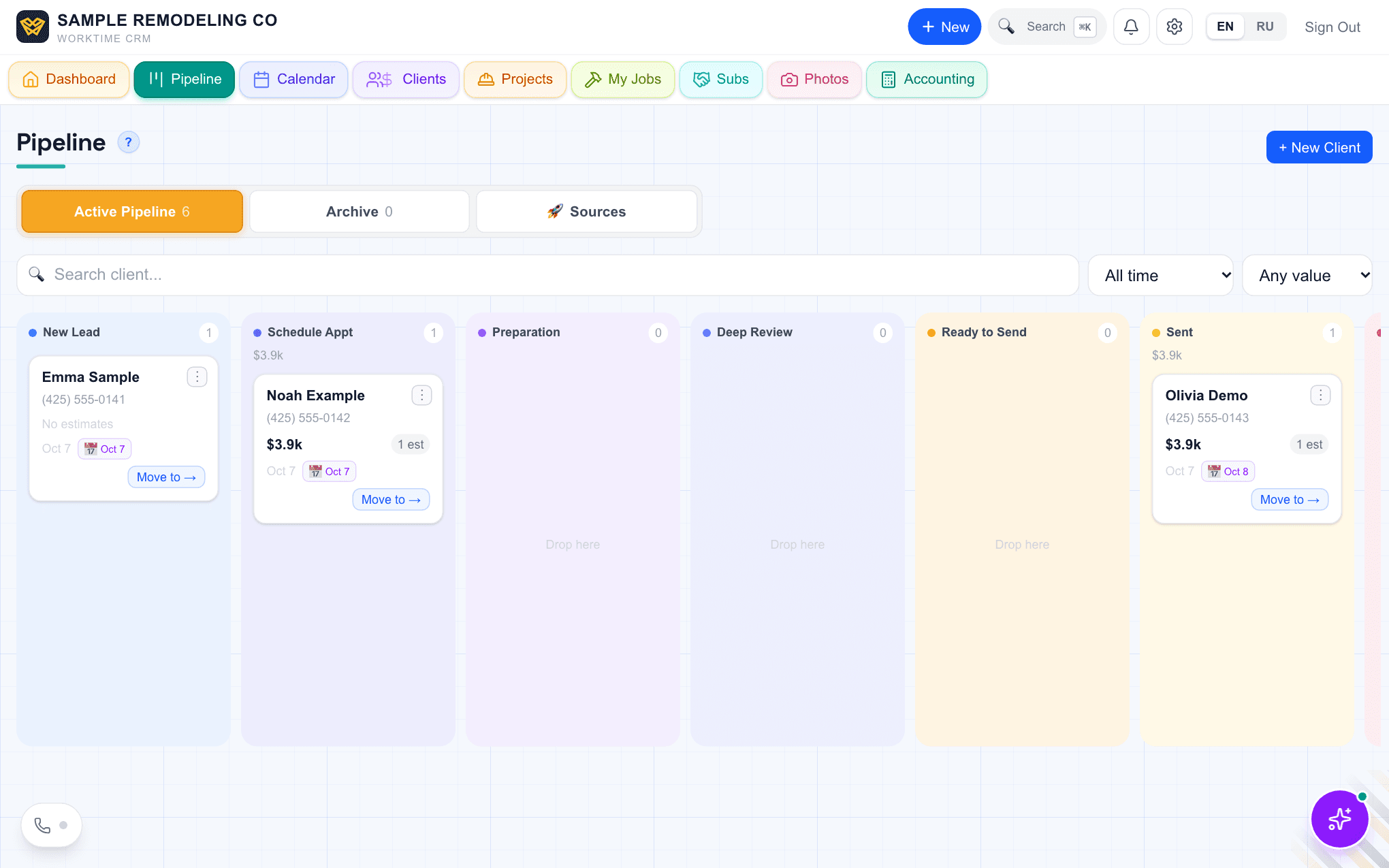
Then open Pipeline → Sources and pick 7, 30 or 90 days. At the top is the money signed in that period and the sources that brought the most. Below, each source has a row: leads, calls, texts, visits, deals and the signed amount. Tap a row to see that source's estimates, marked Signed, Sent, Rejected or Draft.
An amber card lists people who called, did not get through, and whom nobody has called back. Press "Call back" on a row to start.
Spam calls and junk leads are not counted, so the numbers stay honest.
Calls and texts to a tracking number run on your own Twilio account, which Twilio bills you directly.
Comments