The four moments that matter
You do not need a dot moving on a map all day. You need four facts per person per job, each with a time on it:
- Left — so you can tell the customer someone is coming.
- Arrived — so you know the day started where it was supposed to.
- Started work — the clock for hours begins here, not at arrival.
- Finished — the clock stops, and you know the site is empty.
Tell the crew before you turn it on
Say it plainly on day one: "When you tap, I see the time and where the phone was. That is how your hours get counted, and that is how I answer the customer without calling you." People accept a rule they were told about; they resent one they discover.
Rules on recording an employee's location differ by state. If you are not sure about yours, ask your attorney or your payroll provider before you start.
How it works in WorkTime CRM
Open the project, the Crew tab, press "Add a worker" and type a name and a phone. He does not register and gets no password. He gets a personal link — copy it, or press "Text it" — and he can add it to his home screen. Everyone you added is also listed in Settings → Team.
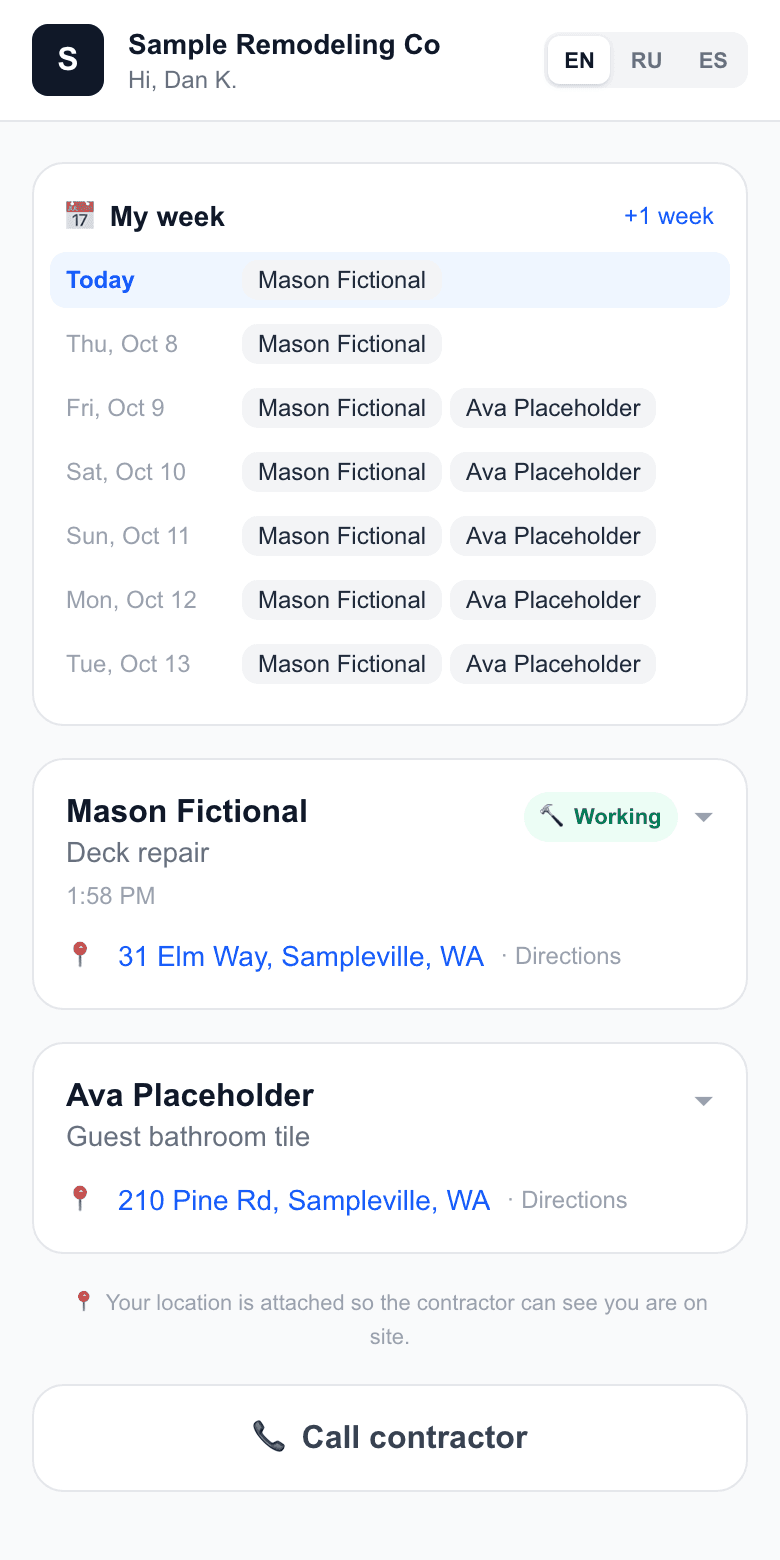
On his phone he sees only his own jobs, and on each one a single big button with the next step: I'm on my way → I've arrived → Start work → Finish work. The page is in English, Russian or Spanish.
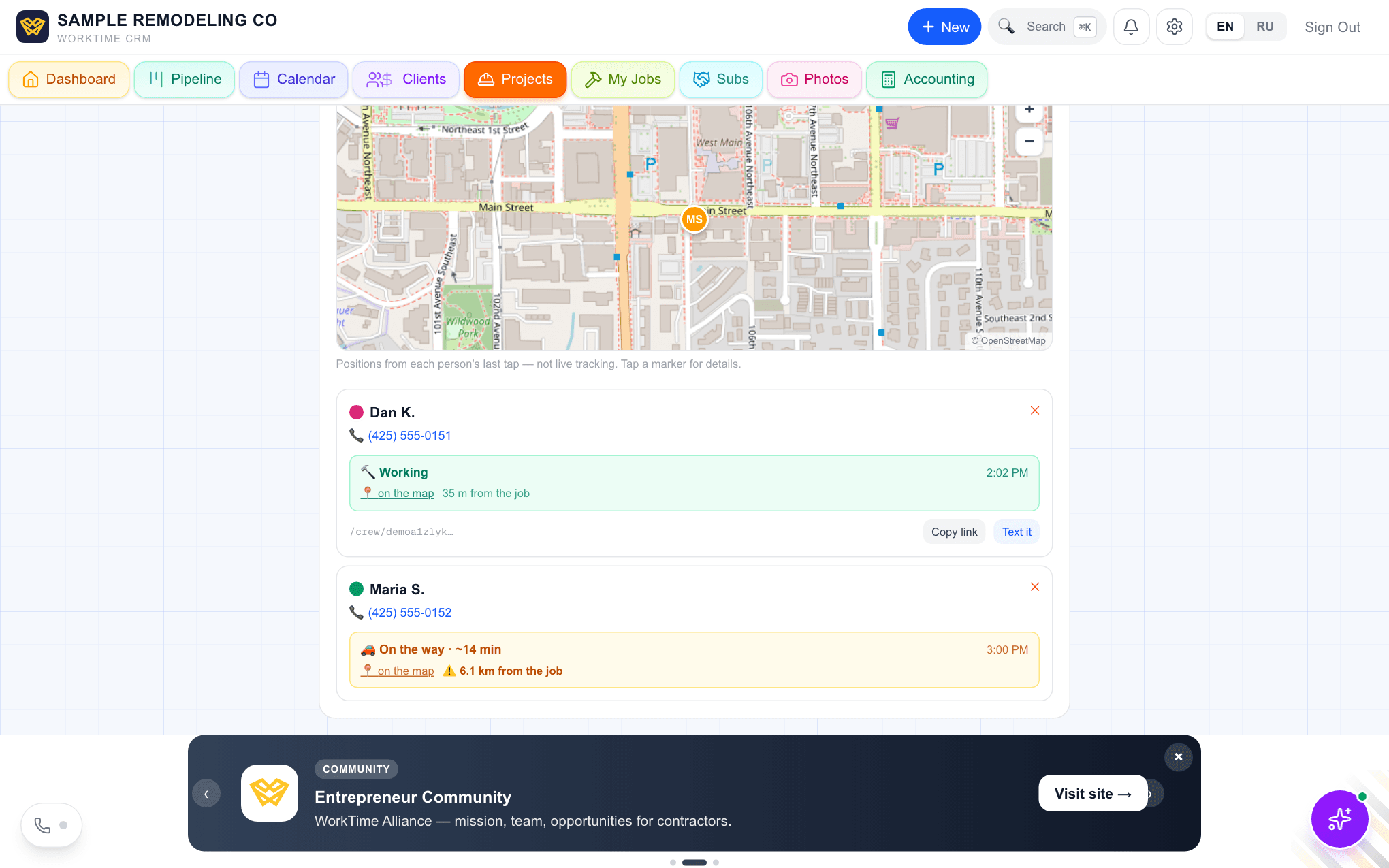
Every tap attaches the phone's location. You get a Telegram or push message right away, and on "on my way" it includes an approximate driving time. On the Crew tab each person shows the latest tap, its time, a map link and how far from the job address it happened; anything over 250 meters (about 820 feet) is flagged. If the phone refused to share location, the check-in still saves and is marked "location was off".
Hours count themselves: the time from "Start work" to "Finish work" is written into the project's Hours on the Money tab and into payroll. Set an hourly rate on the worker's card in Accounting → Payroll and those hours turn into pay. A shift longer than 16 hours is not written — it means someone forgot to tap Finish — so you enter that one by hand. Automatic time tracking helps you work out pay, but the employer is still responsible for counting every paid hour under the law of their state: some drives between jobs are paid time, and they do not sit between "Start work" and "Finish work". When in doubt, ask your payroll provider or an attorney.
The customer gets nothing by default. If you run short service calls, you can switch on a "Technician on the way" text: when the worker taps "I'm on my way", the customer gets one SMS with the arrival estimate. It goes out through your own Twilio number, and Twilio bills you for it.