
What a homeowner wants to know
- The schedule: what happens this week and when someone will be in the house.
- The money: what has been paid, what is due and when.
- Proof of progress: a few photos, especially when they are at work all day.
- A way to ask one question without starting a phone call.
What to show, and what not to
More is not better. A customer who sees every internal note and every photo of an open wall worries more, not less.
- Show the schedule and the payments exactly as agreed.
- Show photos you chose — finished stages, not the mess in between.
- Keep your costs, your subs' prices and your internal notes out of it.
Make it effortless for them
If the customer needs an account and a password, they will text you instead. The page has to open from a link, on a phone, with nothing to remember.
How it works in WorkTime CRM
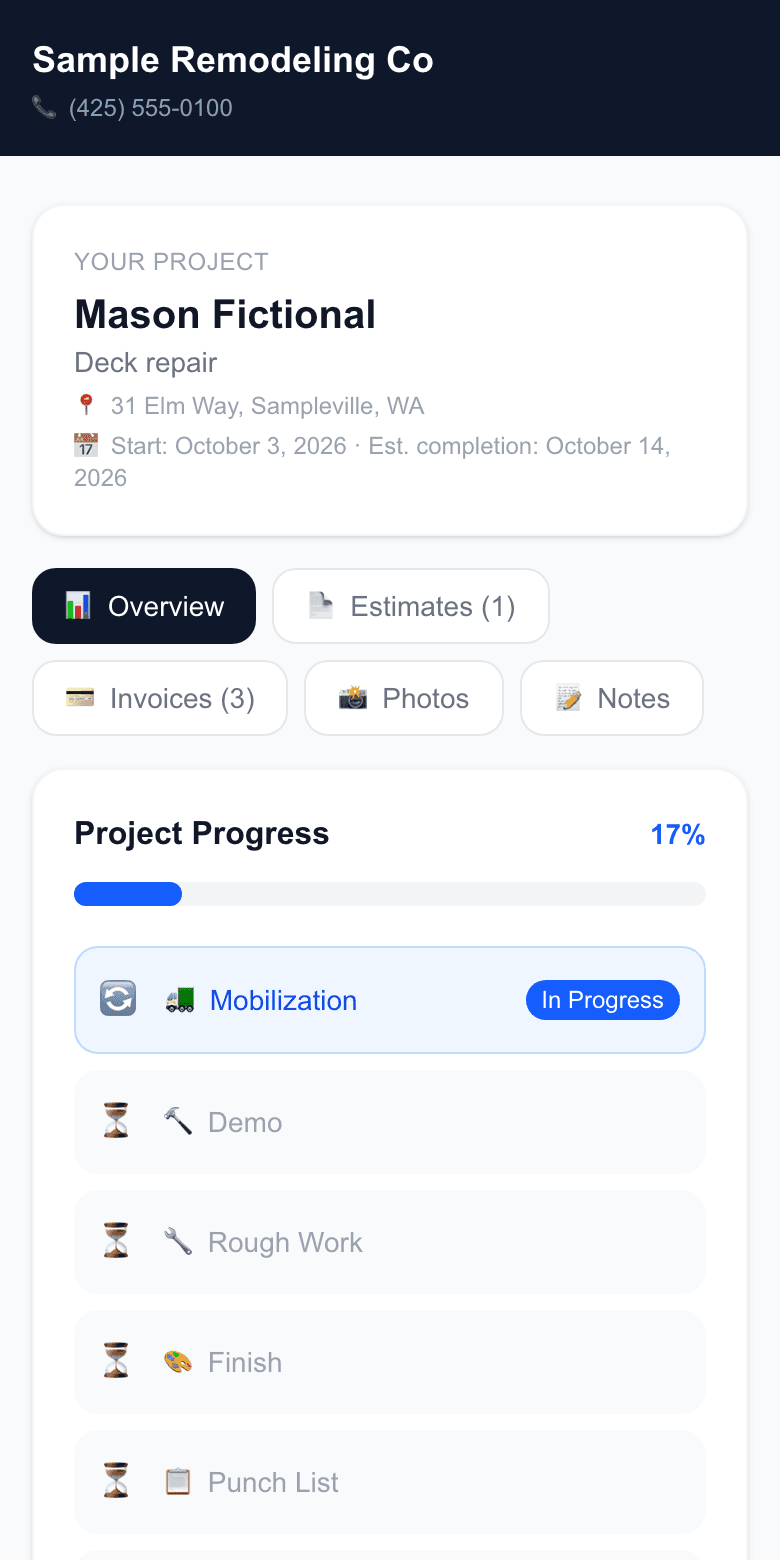
Every project has its own client portal — a link with a secret token in it, so the customer needs no password and no account. They get it by themselves: the welcome email sent right after they sign carries a "View My Project" button, and every invoice of the project carries the same link. There is nothing to set up.
The portal shows the schedule, the payments and the photos you put on the project's Photos tab; a photo you switch off stays hidden. A note the customer leaves there shows up on the project's Client tab, marked "New".
To send the link again, open the project, the Client tab, and copy it from the Client Portal card.
One habit that makes it work
Tell the customer about the page on day one: "Everything about your project is at this link — the schedule, what is paid, photos. Check there first." Said once at the start, it saves the eleven texts.