

1. Export before you tell anyone you are leaving
Do the export while your account is in good standing. Get three lists, each as a CSV file (a spreadsheet saved as CSV is fine):
- Customers — names, phones, emails, addresses, notes.
- Jobs or projects — with status, amount and dates.
- Invoices — paid and unpaid.
2. Know what usually does not come over
An export is a table. Things that are not rows in a table are usually left behind, in any CRM:
- Photos and attached files.
- The history of text messages and emails.
- Customer card numbers saved for payment — these stay with the payment processor.
- Automations and templates, which you rebuild in the new tool.
3. Keep the old account running while you test
Do not cancel on the day you export. Run the two side by side for a week or two: new leads go into the new CRM, old jobs are finished where they started. You cancel when you have stopped opening the old one.
4. Import, and check the columns
Every import comes down to matching columns: which one is the name, which one is the phone. Check the preview before you press the button, and look at five customers you know well afterwards.
In WorkTime CRM the import is on the Clients page → Import, with separate tabs for clients, jobs, estimates and invoices. CSV and Excel (.xlsx) files are read as they are. AI matches the columns for you, you confirm the mapping, and customers you already have — same phone or email — are skipped instead of doubled. Several files can be dropped in at once.
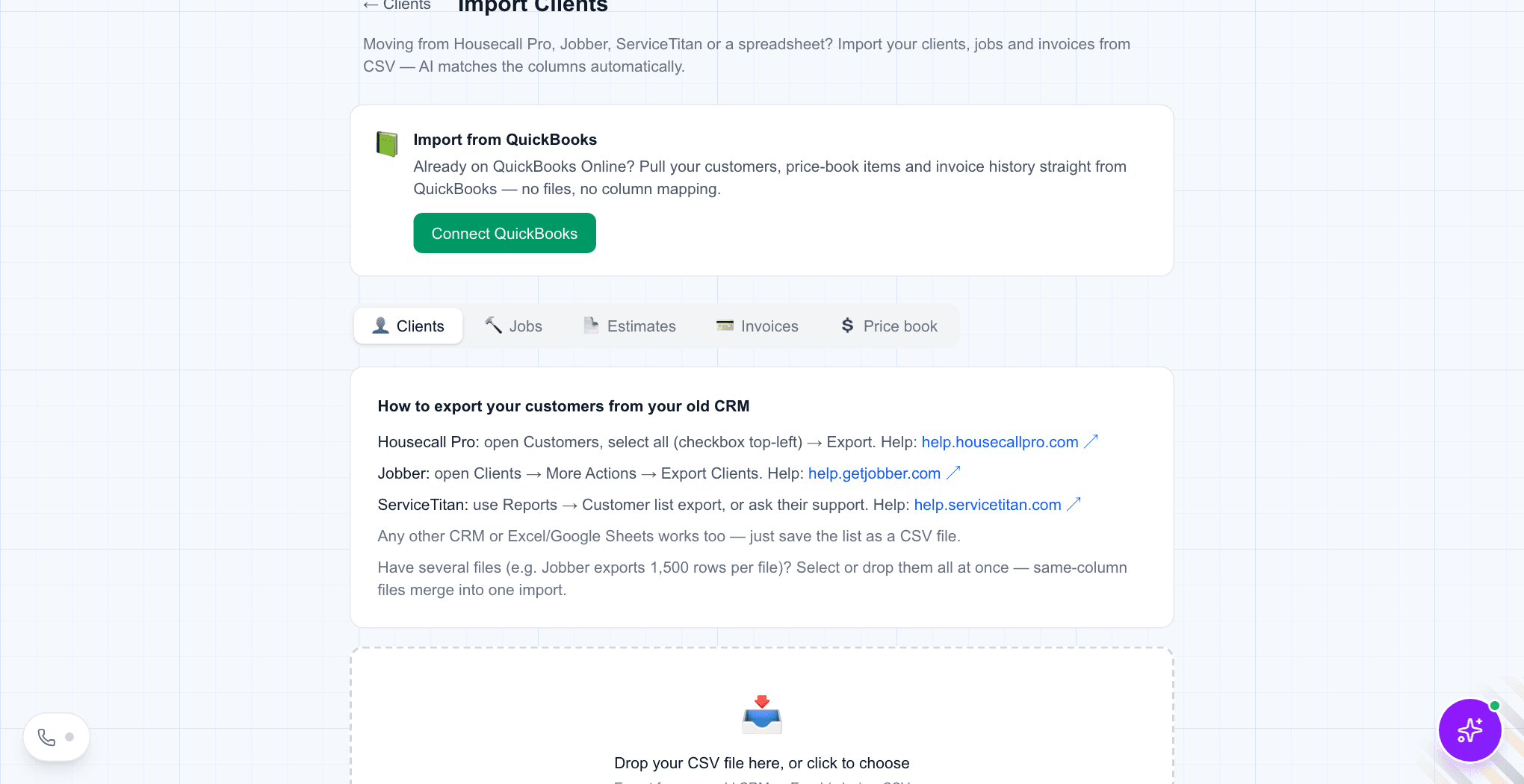
5. Or hand it over
If the export is messy, or you do not want to spend the evening on it, WorkTime CRM has a "Let us migrate you" card on the same page: upload whatever you have and our team imports it for free, usually within one business day.
6. Reconnect what feeds the CRM
- Lead sources — Thumbtack, Google, Facebook, your website form.
- The phone number customers call.
- Online payments.
- Your team: invite them, and show the two screens they will use every day.